
How to Run a Self-Hosted SLM Coding Assistant on Your Own Infra in 2026
Taher Pardawala June 27, 2026
If you want your code to stay inside your own network, self-hosting can work well in 2026 – but only if you pick the right job, model size, and hardware first.
I’d boil the whole article down to this: start with the use case, not the model. A 1B–4B model fits inline autocomplete, a 7B–15B model fits chat-style coding help, and a 30B-class model is more suited to agent loops. For most teams, the split is simple: Ollama for one user or early setup, vLLM for shared internal use.
Here’s the short version:
- Best fit: teams that want private code handling, fixed infra spend instead of per-token bills, or local/offline access
- Bad fit: low usage, changing workloads, or teams that don’t want to run GPUs, proxies, logs, and updates
- Model range: about 1B to 30B parameters
- Starter hardware: 12–16 GB VRAM for small-to-mid models; 24 GB VRAM is the floor for a 30B MoE coding model
- Context matters: long context can push memory use far past model weight size
- Security baseline: keep inference on 127.0.0.1, put TLS/auth at the proxy, and do not log prompt or code content
- Watch these numbers: tokens/sec, time to first token, VRAM use, and queue depth
A few model picks stand out in the piece:
- SmolLM3 (3B): low-memory tab completion
- Phi-4 (14B): single-GPU code reasoning, about 9.1 GB VRAM at 4-bit
- Gemma 4 (12B): coding workflows with image/audio input
- Qwen3-Coder 30B MoE: agent-style editing on a 24 GB GPU
Quick Comparison
| Need | Best starting point | Typical hardware | Main limit |
|---|---|---|---|
| Inline autocomplete | SmolLM3 / small coder model | 16 GB RAM or 12 GB VRAM | latency |
| Chat-based editing | Phi-4 / Gemma 4 class | 12–16 GB VRAM | context size |
| Agent-style editing | Qwen3-Coder 30B MoE | 24 GB VRAM | VRAM + queue load |
| Single-user runtime | Ollama | local workstation | low concurrency |
| Team runtime | vLLM | shared GPU server | more setup work |
The core idea is simple: use the smallest model and simplest runtime that still does the job. That keeps cost, latency, and setup pain under control while giving you a private coding assistant your team can actually use.
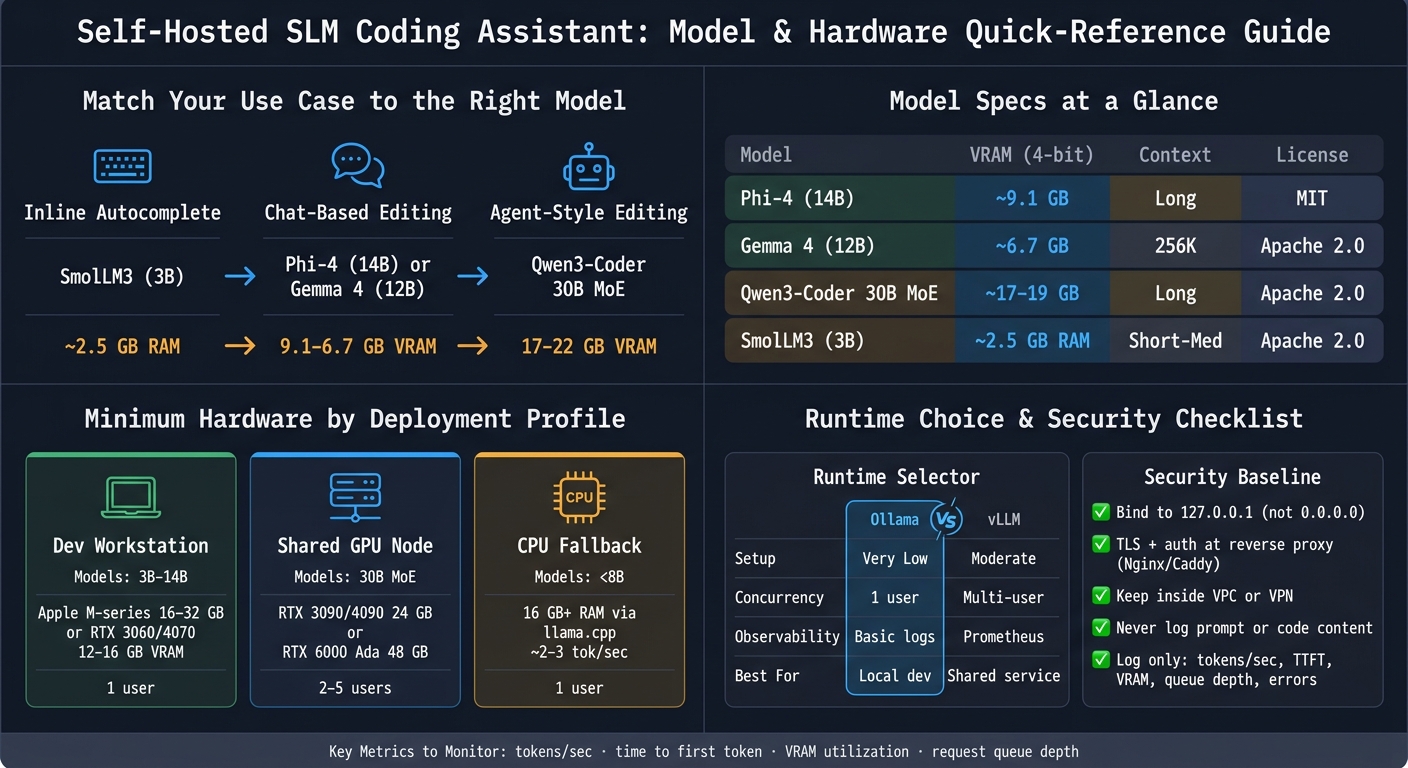
Self-Hosted SLM Coding Assistant: Model & Hardware Quick-Reference Guide
Coding Agent with a Self-Hosted LLM using OpenCode and vLLM
sbb-itb-51b9a02
Choose a Model and Runtime Stack
Once you know the target, go with the smallest model and simplest runtime that can hit it. Those two choices are tied together. A model’s memory footprint decides what hardware you need, and the runtime affects whether the assistant feels smooth for one person or holds up for a team.
Pick an SLM for Coding Work
A practical 2026 shortlist includes Phi-4 (14B), Gemma 4 (12B), Qwen3-Coder (30B MoE), and SmolLM3 (3B). Each lands at a different point on the capability-to-memory trade-off, and each maps well to one of the three deployment targets: autocomplete, chat editing, and agent loops.
Phi-4 is a solid choice for code reasoning on a single GPU. In 4-bit quantization, it uses about 9.1 GB of VRAM. The model card lists an MIT license. [5][7]
Qwen3-Coder 30B uses a mixture-of-experts setup and activates only about 3.3 billion parameters per forward pass. That makes it a strong match for a 24 GB GPU and agent-style editing. [1]
Gemma 4 12B fits best when your workflow needs image or audio input alongside coding tasks. [4]
SmolLM3 (3B) is the low-RAM pick for fast inline completions. [1]
| Model Family | Typical Use Case | Context | VRAM/RAM (4-bit) | License |
|---|---|---|---|---|
| Phi-4 (14B) | Code reasoning, Python/TypeScript | Long context | ~9.1 GB VRAM | MIT |
| Gemma 4 (12B) | Multimodal coding with images/audio | Up to 256K | ~6.7 GB VRAM | Apache 2.0 |
| Qwen3-Coder (30B MoE) | Primary agent / autonomous editing | Long context, configurable | ~17–19 GB VRAM | Apache 2.0 |
| SmolLM3 (3B) | Tab completion / low-RAM devices | Short-to-medium context | ~2.5 GB RAM | Apache 2.0 |
Use Q4_K_M as the baseline. Going lower on precision usually hurts code quality. [1][4]
Once you’ve sized the model, the next step is picking a runtime you can live with day to day.
Pick a Runtime You Can Actually Operate
Choose the runtime based on concurrency.
Ollama is the easiest place to start for a single workstation or small-team prototyping. You install one binary, pull model weights with a single command, and get an OpenAI-compatible endpoint on port 11434. [1]
There’s one catch: the default context window is often only 2,048 to 4,096 tokens, which is too small for coding agents. Before you hook it up to an IDE agent, set a custom Modelfile with PARAMETER num_ctx 65536. [1]
vLLM makes more sense once you need a shared internal service. It supports continuous batching and PagedAttention, and it exposes Prometheus metrics at /metrics. That makes it much easier to run under actual multi-user load. [2][4]
| Feature | Ollama | vLLM |
|---|---|---|
| Setup Complexity | Very low | Moderate |
| API Support | OpenAI-compatible | OpenAI-compatible |
| Concurrency Fit | Single user / small team | Multi-user / batched |
| Observability | Basic logs | Prometheus metrics |
| Ideal Stage | Local dev / prototyping | Shared service / production |
Plan Hardware, Network, and Security Before You Install Anything
Before you touch a terminal, turn your model choice into three concrete decisions: the machine, the network boundary, and a short security checklist. Miss here, and you either end up with a sluggish assistant or, worse, source code leaking through the API. Once you know the target, map it to VRAM, network access, and logging rules.
Size the Machine for the Model
Use this formula: weight memory + KV cache + 15%–25% runtime overhead = minimum VRAM.
At Q4_K_M quantization, Phi-4 (14.7B) needs about 9.1 GB of VRAM [5]. That fits on an RTX 3060/4070-class GPU with 12–16 GB VRAM, or an Apple M-series machine with 16–32 GB unified memory. Qwen3-Coder 30B needs about 18–22 GB, so 24 GB is the practical floor. Think RTX 3090, RTX 4090, or something in that class [8][1].
Parameter count isn’t the whole story. Context window size matters just as much. A large context window can drive KV cache use far past the model weight footprint, and for agent-style work, that’s often the limit that bites first [8][1].
Use the table below to pick the smallest machine that still fits both the model and the context window.
| Deployment Profile | Target Model | Hardware | Concurrency |
|---|---|---|---|
| Dev Workstation | 3B–14B | Apple M-series with 16–32 GB unified memory or RTX 3060/4070 with 12–16 GB VRAM | Single user |
| Shared GPU Node | 30B (MoE) | RTX 3090/4090 (24 GB) or RTX 6000 Ada (48 GB) | 2–5 users |
| CPU Fallback | <8B | 16 GB+ system RAM (llama.cpp), ~2–3 tokens/sec |
Single user |
Set the Minimum Security Baseline
Bind the runtime to 127.0.0.1 by default [3][4]. Don’t bind the API to 0.0.0.0. Put it behind a reverse proxy instead. Keep inference on localhost, then use Nginx or Caddy for TLS and auth. If a team needs access, place the node inside a private VPC or behind a VPN so prompts and completions stay inside a controlled boundary [3][4].
Because the assistant handles proprietary source code, prompt and code content should stay out of logs entirely. Log ONLY operational telemetry:
- token counts
- tokens per second
- time to first token
- GPU memory
- queue depth
- errors
Write those logs as structured JSON to stdout or to a secure log pipeline [2][9][3].
With the machine sized and the attack surface closed, install the runtime and connect the editor.
Set Up the Assistant Step by Step
Once your machine is sized and the network boundary is clear, it’s time to get the runtime up, make sure the API answers, and hook it into your editor.
Install the Runtime and Serve a Model
On Linux or macOS, you can install Ollama with one command [10]:
curl -fsSL https://ollama.com/install.sh | sh If you’re running a 24 GB GPU, use qwen3-coder:30b at Q4_K_M [1]:
ollama run qwen3-coder:30b Before connecting your editor, create a Modelfile and set num_ctx to 65,536 [1]:
FROM qwen3-coder:30b PARAMETER num_ctx 65536 Save the file, then create the custom model using Ollama’s documented workflow.
After that, check the endpoint first. It’s a small step, but it saves a lot of guesswork later.
Test the API and Connect an Editor
Use a non-streaming curl request to make sure the API is working [10]:
curl http://localhost:11434/v1/chat/completions \ -H "Content-Type: application/json" \ -d '{ "model": "qwen3-coder:30b", "messages": [{"role": "user", "content": "Write a hello world in Rust"}], "stream": false }' If you get a JSON response with choices, the endpoint is working.
Prefer Python? Use the openai library with base_url="http://localhost:11434/v1" and api_key="ollama" [10]. Ollama ignores the key itself, but the field still has to be there.
For Continue.dev, set the provider to ollama in config.yaml and point apiBase to http://localhost:11434. Use qwen3-coder:30b for chat and edit. For autocomplete, go with a smaller model like qwen2.5-coder:1.5b to keep latency low [1].
Once the editor is connected, the next job is access control – especially if more than one person will use it.
Harden the Setup for Team Use
For a solo setup, keep things simple. Add proxying and auth when other developers need access.
Bind Ollama to the private network interface used by your reverse proxy instead of exposing the raw API port [10]:
export OLLAMA_HOST=0.0.0.0:11434 Then place it behind Nginx with auth_basic for username/password protection and TLS termination. At the proxy level, set client_max_body_size 512KB to block oversized payloads that could drain system resources [9].
It also helps to commit the Nginx config and systemd unit so anyone on the team can recreate the setup. Add Restart=always to the systemd unit so the service comes back after crashes or reboots [10].
During rollout, run this in another terminal to watch VRAM use in near real time [10]:
watch -n 2 nvidia-smi Operate It in Production and Know When to Change the Design
Handle Ongoing Operations Without Surprises
Once the editor is live, the job changes. You’re no longer focused on setup. Now it’s about versioning, monitoring, and having a rollback path ready.
Getting something running is the easy part. Keeping it stable is where teams usually get burned.
Pin the exact version of your inference runtime and CUDA driver in the deployment config. Use one checked-in Modelfile for each assistant role, with a fixed context window, temperature, and system prompt. That same checked-in Modelfile should stay the same across environments. If a model update hurts output quality, use blue-green weight rollouts so you can switch back fast. Set OLLAMA_KEEP_ALIVE=-1 so models stay loaded in memory between requests and you avoid cold-start delays [6].
For observability, track four signals:
- tokens per second (TPS)
- time to first token (TTFT)
- GPU VRAM utilization
- request queue depth [2]
Leave some VRAM headroom for KV-cache spikes. If queue depth stays high, that’s a sign the single-server setup is running out of room and you should move to a shared-service runtime.
Compare Deployment Stages and Trade-offs
These signals make the next step pretty clear: at some point, a one-box setup stops being enough.
| Stage | Users Supported | Hardware Profile | Key Risks | Runtime Style |
|---|---|---|---|---|
| Single Developer | 1 | Consumer GPU (16–24 GB VRAM) | OOM on long context; thermal throttling | Ollama / llama.cpp |
| Shared Team Server | 5–20 | 1–2 datacenter GPUs (e.g., A10G/L4) | Concurrency bottlenecks; version drift | vLLM / SGLang |
| High-Availability | 20+ | Multi-node GPU cluster (H100s) | High fixed cost; operational complexity | vLLM with load balancer |
A single-developer setup on a 24 GB consumer GPU is a practical place to start. It keeps things simple and gives you room to learn how the system behaves under day-to-day use. When several developers need access at the same time, or when queue depth starts climbing and stays there, it’s time to move to a shared server runtime like vLLM.
Conclusion: The Smallest Setup That Is Still Safe and Useful
Once usage settles down, the main question becomes simple: does the current setup still fit the team’s size and control needs?
A self-hosted SLM coding assistant works best when you run it like any other internal service. Pick a documented model. Match it to a runtime your team can run without drama. Size hardware with some buffer instead of cutting it too close. Lock down access before more than one person starts using it. Use the local assistant for autocomplete and boilerplate, and send hard multi-file work to a cloud model when that makes more sense.
Self-hosting makes sense when control over code, models, and access matters more than variable API cost. If usage stays low, managed APIs are usually the cheaper option.
FAQs
How do I choose the right model size for my team?
Choose based on hardware, latency needs, and the kind of coding work you do.
The main constraint is available VRAM. As a rule of thumb, 3–4B models need about 2–4 GB with 4-bit quantization, 7B models need about 3.5–5 GB, and 14B models need about 9–10 GB.
Then match model size to the job:
- Smaller models work well for inline completion, where low latency matters most
- Larger models are a better fit for chat, refactoring, and more complex logic
- 4B models sit in the middle and tend to be a good general-use choice
One more thing: context window size matters too. As the context window grows, VRAM use goes up in a roughly linear way.
When should I use Ollama instead of vLLM?
Use Ollama when you want the simplest path to local development, prototyping, or single-user work. It’s built to be easy to use, with a simple setup and models you can pull and run with a single command.
Choose vLLM for production deployments with multiple concurrent users. It’s built for higher throughput and handles heavy, multi-user traffic more efficiently.
What hardware do I need for long-context coding tasks?
For long-context coding, put VRAM at the top of your list. It has to hold both the model weights and the KV cache. And that cache keeps growing in a straight line as context gets longer, to the point where it can end up larger than the weights themselves.
Here’s the part that catches people off guard: an 8B model running at 128K context may need about 20 GB of extra VRAM just for that added load.
A simple rule of thumb:
- 24 GB is a practical sweet spot
- 48 GB to 80 GB is a better fit for whole-repo work or 70B+ models
- Apple M-series chips with 32 GB to 64 GB of unified memory can also help
If you’re sizing a machine for long context, this is why raw compute isn’t the whole story. Memory often becomes the bottleneck first.
Related Blog Posts
- Phi-4 vs Gemma 3 vs Mistral Small: A Practical Benchmark for the Enterprise Use Cases That Actually Matter
- Self-Hosted SLMs for Regulated Industries: Architecture, Cost, and Compliance Trade-offs We’ve Navigated
- Why Enterprise Clients Are Now Asking for SLM Options Before Signing Off on Any AI Feature
- On-Device AI With SLMs: The Latency and Memory Trade-offs Nobody Benchmarks Honestly




Leave a Reply